
主题
开发中遇到的问题
1. 微信小程序 -- 背景图片不显示
原因:小程序不支持在css中使用本地文件,包括本地的背景图和字体文件。
解决:用base64方式或使用网络https开头的图片资源
2. 定制HTML模板
目的:1.调整页面head中的meta配置2.补充SEO相关的一些配置(仅首页)3.加入百度统计等第三方js
步骤一:在工程根目录下新建index.html
步骤二:复制下面的内容,并在基础上修改meta和引入的JS
html
<!DOCTYPE html>
<html lang="zh-CN">
  <head>
    <meta charset="utf-8" />
    <meta http-equiv="X-UA-Compatible" content="IE=edge" />
    <title><%= htmlWebpackPlugin.options.title %></title>
    <script>
      var coverSupport =
        "CSS" in window &&
        typeof CSS.supports === "function" &&
        (CSS.supports("top: env(a)") || CSS.supports("top: constant(a)"));
      document.write(
        '<meta name="viewport" content="width=device-width, user-scalable=no, initial-scale=1.0, maximum-scale=1.0, minimum-scale=1.0' +
          (coverSupport ? ", viewport-fit=cover" : "") +
          '" />',
      );
    </script>
    <link
      rel="stylesheet"
      href="<%= BASE_URL %>static/index.<%= VUE_APP_INDEX_CSS_HASH %>.css"
    />
  </head>
  <body>
    <noscript>
      <strong>Please enable JavaScript to continue.</strong>
    </noscript>
    <div id="app"></div>
    <!-- built files will be auto injected -->
  </body>
</html>
步骤三:在manifest.json中进行h5配置,选择index.html模板路径

步骤四:重启项目,使配置生效
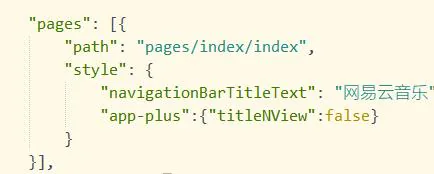
3. 去除顶部导航标题
在style中增加 "app-plus":{"titleNView":false} 配置,仅在APP与H5中生效
4. 自动焦点获取
在input组件设置 focus 属性能自动获取焦点,但是报错:Autofocus processing was blocked because a document's URL has a fragment
解决方案:将路由hash模式改为history
5. 跳转到外部链接
H5
js
location.href = this.url;微信小程序
vue
<template>
  <view>
    <button class="submit-btn" @click="toExecute">执行</button>
  </view>
</template>

<script>
export default {
  data() {
    return {
      url: "",
    };
  },
  methods: {
    toExecute() {
      uni.navigateTo({
        url: "/pages/showhfive/showhfive?url=" + this.url,
      });
    },
  },
};
</script>
跳转到新页面,用web-view组件去承接新页面
vue
<template>
  <web-view :src="url" bindmessage="getMessage"></web-view>
</template>

<script>
export default {
  data() {
    return {
      url: "",
    };
  },
  onLoad(options) {
    this.url = options.url;
  },
};
</script>

<style></style>
提示:个人账号现在无法配置微信小程序业务域名
6. 微信小程序无法通过document.getElementById等获取节点信息
使用 uni.createSelectorQuery() 来查询节点信息,从而控制滚动高度。但距离顶部的高度是相对于视口的,而非滚动容器的
js
import { getCurrentInstance } from "vue";
const instance = getCurrentInstance();

const query = uni.createSelectorQuery().in(instance.proxy);
query
  .select("#id")
  .boundingClientRect((data) => {
    console.log("得到布局位置信息" + JSON.stringify(data));
    console.log("节点离页面顶部的距离为" + data.top);
  })
  .exec();
7. scroll-view定位滚动
两种方式:
方式一:设置 scroll-top 属性值,可以定位到该区域
方式二:scroll-into-view,值应为某子元素id(id不能以数字开头)。设置哪个方向可滚动,则在哪个方向滚动到该元素
scroll-into-view 的优先级高于 scroll-top。
8. uni-app原生的uni.request()网络请求,不支持cookie
9. 设置token缓存期
步骤一:登录成功,存入token时加入时间戳
js
//cache.js
export default function cache(key, data, time) {
  var timestamp = Date.parse(new Date()) / 1000;
  if (!time) {
    var expire = timestamp + 3600 * 24 * 30;
  } else {
    var expire = timestamp + time;
  }
  data = data + "|" + expire;
  uni.setStorage({
    key,
    data,
  });
}

//res.access_token为后端获取的token
cache("token", res.access_token);
步骤二:在获取本地token时对token进行处理
js
//token.js
export default function getToken() {
  var timestamp = Date.parse(new Date()) / 1000;
  return new Promise((resolve, reject) => {
    uni.getStorage({
      key: "token",
      success: (res) => {
        var tmp = res.data.split("|");
        if (timestamp > tmp[1]) {
          /* token过期 */
          uni.removeStorage({
            key: "token",
            success: () => {
              resolve(null);
            },
          });
        } else {
          resolve(tmp[0]);
        }
      },
      fail: () => {
        resolve(null);
      },
    });
  });
}
步骤三:在路由前置钩子中,如果访问登录页则对token进行处理
js
//全局路由前置守卫
router.beforeEach((to, from, next) => {
  getToken().then((res) => {
    if (res && to.name == "login") {
      router.pushTab({ name: "index" });
      next();
    } else {
      next();
    }
  });
});
10. APP端输入正确密码报错,并且按钮颜色没有随监听的属性值改变而改变
原因:Android手机英文输入法有单词联想功能,导致输入完英文后,没有点击确定的话,是获取不到输入内容的
解决:关闭手机单词联想功能
11. u-input在小米9手机上会出现第一次无法弹出键盘的BUG
解决办法:使用uni-app的原生input
12. 微信小程序中echarts的层级比u-calendar组件高
解决方式一,使用picker等原生组件
解决方式二,使用cover-view。但是需要配置微信库的版本,高版本是有BUG的,是盖不住的。
在manifest.json文件中配置小程序版本号,指定2.7.3版本(指定了版本,可能会遇到在iOS上组件错误的情况)
json
"mp-weixin" : {
/* 小程序特有相关 */
"appid" : "wxcebc51a845d2a6f7",
"libVersion": "2.7.3",
"setting" : {
"urlCheck" : false,
"es6" : true,
"minified" : true
},
"usingComponents" : true,
"permission" : {},
"optimization" : {
"subPackages" : true
}
},
13. 判断基础库是否可使用
前提:因为微信用户使用的版本不一样,为了保证功能的正常使用,需要对版本做兼容
通过版本分布,我们可以设置最低版本
https://developers.weixin.qq.com/miniprogram/dev/framework/client-lib/version.html
低版本兼容:https://developers.weixin.qq.com/miniprogram/dev/framework/compatibility.html
14. 引入UView
(1)在官网下载:https://uviewui.com/components/downloadSetting.html
打开下载的文件夹,将 uview-ui 文件夹放入项目根目录
(2)下载scss
从HBuilder X 菜单的 工具->插件安装中找到"scss/sass编译"插件进行安装
(3)引入uView主JS库
js
// main.js
import uView from "uview-ui";
Vue.use(uView);
注意这两行要放在import Vue之后。
(4)引入uView的全局SCSS主题文件
在项目根目录的uni.scss中引入此文件。
scss
/* uni.scss */
@import "uview-ui/theme.scss";
(5)引入uView基础样式
在App.vue中首行的位置引入,注意给style标签加入 lang="scss" 属性
vue
<style lang="scss">
/* 注意要写在第一行,同时给style标签加入lang="scss"属性 */
@import "uview-ui/index.scss";
</style>
(6)配置easycom组件模式
此配置需要在项目根目录的pages.json中进行。
json
// pages.json
{
  "easycom": {
    "^u-(.*)": "@/uview-ui/components/u-$1/u-$1.vue"
  },
  // 此为本身已有的内容
  "pages": [
    // ......
  ]
}
配置完,重新编译项目
15. 微信授权页面跳到主页
在pages.json中,将微信授权页面放在数组中的第一个,让其被最先索引到
json
{
  "pages": [
    {
      "path": "pages/login/index",
      "style": {
        "navigationBarTitleText": "uni-app"
      }
    },
    {
      "path": "pages/index/index",
      "style": {
        "navigationBarTitleText": "uni-app"
      }
    },
    {
      "path": "pages/user/user",
      "style": {
        "navigationBarTitleText": "",
        "enablePullDownRefresh": false
      }
    },
    {
      "path": "pages/message/message",
      "style": {
        "navigationBarTitleText": "",
        "enablePullDownRefresh": false
      }
    }
  ],
  "globalStyle": {
    "navigationBarTextStyle": "black",
    "navigationBarTitleText": "uni-app",
    "navigationBarBackgroundColor": "#F8F8F8",
    "backgroundColor": "#F8F8F8",
    "app-plus": {
      "background": "#efeff4"
    }
  },
  "tabBar": {
    "color": "#ccc",
    "selectedColor": "#f00",
    "backgroundColor": "#fff",
    "borderStyle": "black",
    "list": [
      {
        "text": "主页",
        "pagePath": "pages/index/index"
      },
      {
        "text": "消息",
        "pagePath": "pages/message/message"
      },
      {
        "text": "我的",
        "pagePath": "pages/user/user"
      }
    ]
  }
}
通过页面跳转,跳到主页(因为主页是tabBar上定义的页面,所以需要uni.switchTab()进行跳转)
js
click(){
uni.switchTab({
url:'../index/index'
})
}